


Video Tutorial
Information
This article shows you how to download and install our products for both Unreal Engine and Unreal Editor for Fortnite (UEFN). The installation process is very simple, and even if you have no prior experience with Unreal Engine or UEFN, you should be able to install our products after following the video tutorial or reading this article.
This guide does not explain how to use individual products. Product documentation, tutorials, and usage guides can be found on each product page. For general product questions, please see our Frequently Asked Questions (FAQs).
Getting Your Product
Visit the Products page to explore all available products. Use the search and sorting tools to quickly find what you are looking for, and subscribe to our newsletter for updates on new releases, major changes, and important announcements.
When you find a product you like, press Buy now on the product page. You will then be asked whether you want to purchase it through Fab or Gumroad.
You will receive the same product files and support no matter which platform you choose. The main differences are the installation steps, payment processing, VAT handling, refund process, and End User License Agreements (EULAs). We use both platforms to give you more flexibility when purchasing our products.
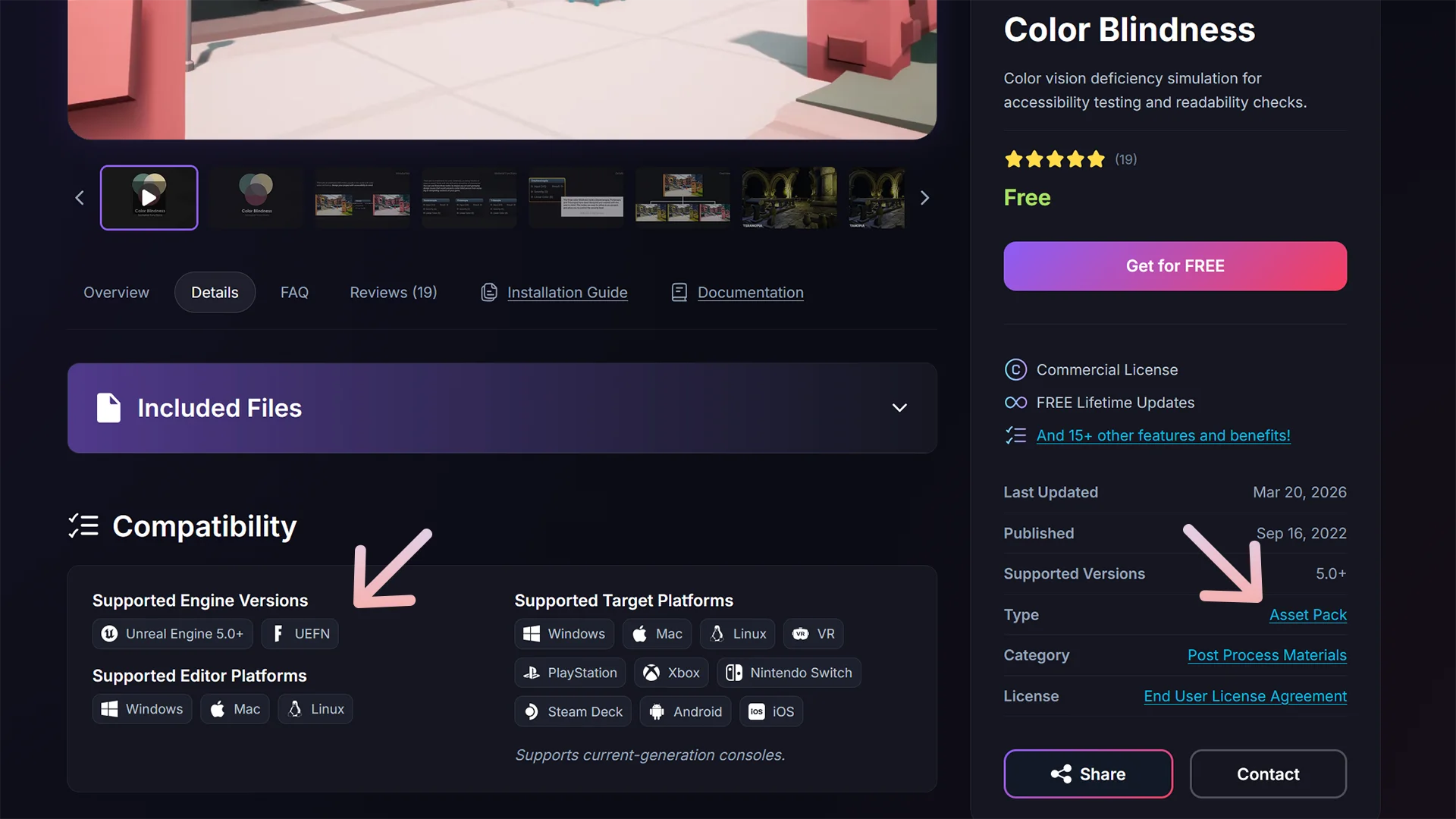
Before purchasing or downloading, check the product Type in the sidebar on the product page. Installation steps vary depending on whether the product is an asset, asset pack, or plugin, and installing it incorrectly may prevent it from appearing in your project.
If you are developing for UEFN, check the Compatibility section to confirm that the UEFN tag is listed.
Buying on Fab
- On the product page, press Buy on Fab.
- On Fab, select the correct license for your project.
- Press Buy now and complete the checkout.
Once the purchase has been completed, you can install the product to your project.
Buying on Gumroad
- On the product page, press Buy on Gumroad.
- On Gumroad, select Buy this or Add to Cart.
- Complete the checkout.
Once the purchase has been completed, you will get instant access to the product and can download the files immediately to install them to your project.
Download the Right Files
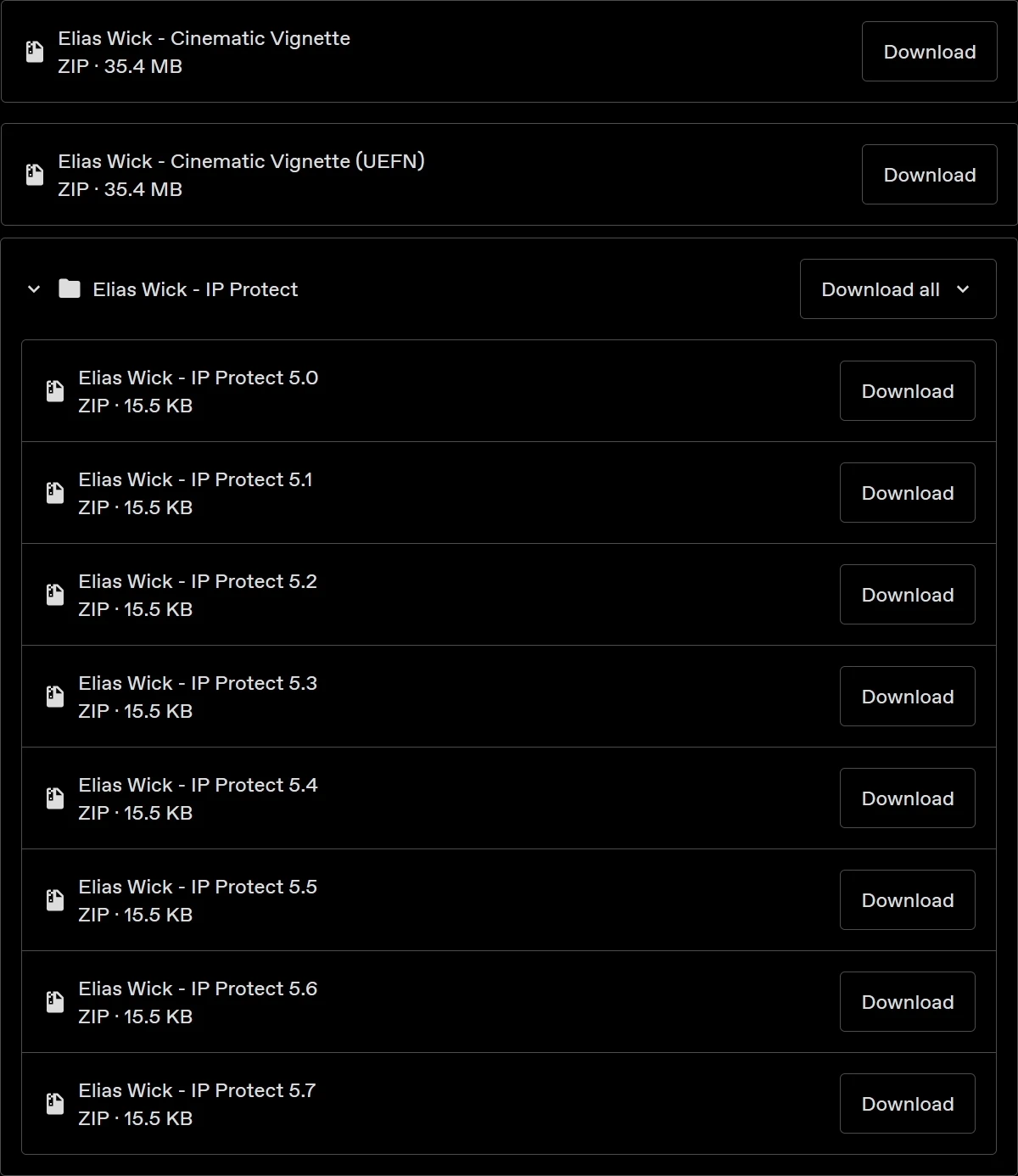
If multiple files are available for different engine versions, download the one that matches or is closest to the Unreal Engine version you are using. If you are using UEFN, download the files with the UEFN suffix.
If the product is a plugin, make sure to download the correct plugin version for your engine. For example, if you are using Unreal Engine 5.8, download the plugin files with the name suffix 5.8.
Fab Installation (Unreal Engine)
You can install products either through the Epic Games Launcher or directly from your Unreal Engine project. We recommend using the Epic Games Launcher for plugins, although both methods work. Installing through the launcher usually only requires one editor restart.
Assets and Asset Packs
Installing from the Epic Games Launcher
- Open the Epic Games Launcher.
- Press the Fab button in the left side panel.
- Locate the product you purchased and click on it.
- Press Add to Project.
- Select your Unreal Engine project.
- Press Add to Project again to add the product to your project.
When you open your project, the product should appear in the Content Browser.
Installing from inside Unreal Engine
- Open your Unreal Engine project.
- Go to Window > Fab, or open the Content Browser and press the Fab button.
- Locate the product you purchased and click on it.
- Press Add to Project.
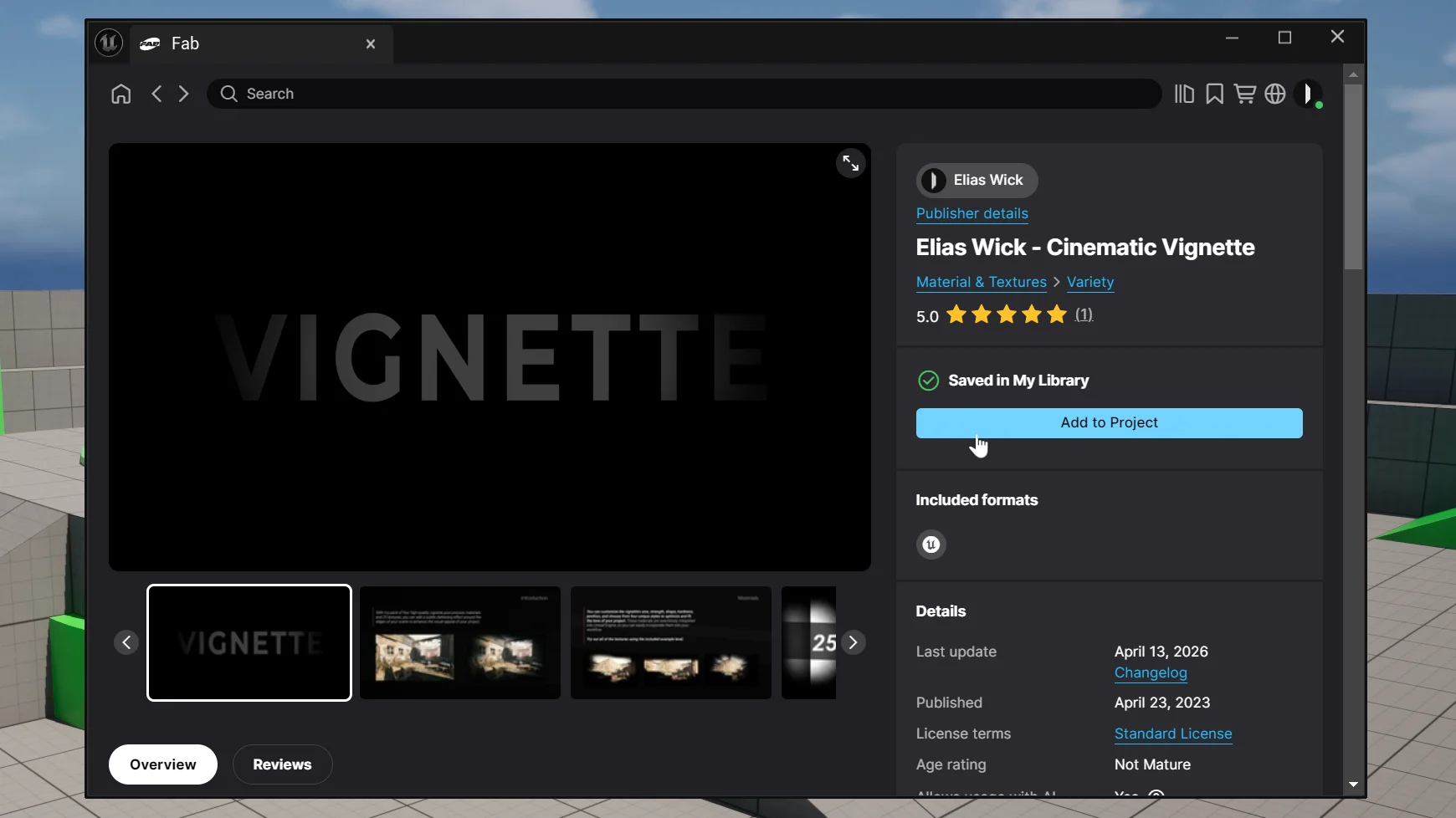
The product will download in the background. You can follow the progress in the bottom right corner of the editor. Once the download is complete, the files will appear in the Content Browser.
Plugins
- Open the Epic Games Launcher.
- Press the Fab button in the left side panel.
- Locate the product you purchased and click on it.
- Press Install plugin.
- Select the correct engine version.
- Press Install.
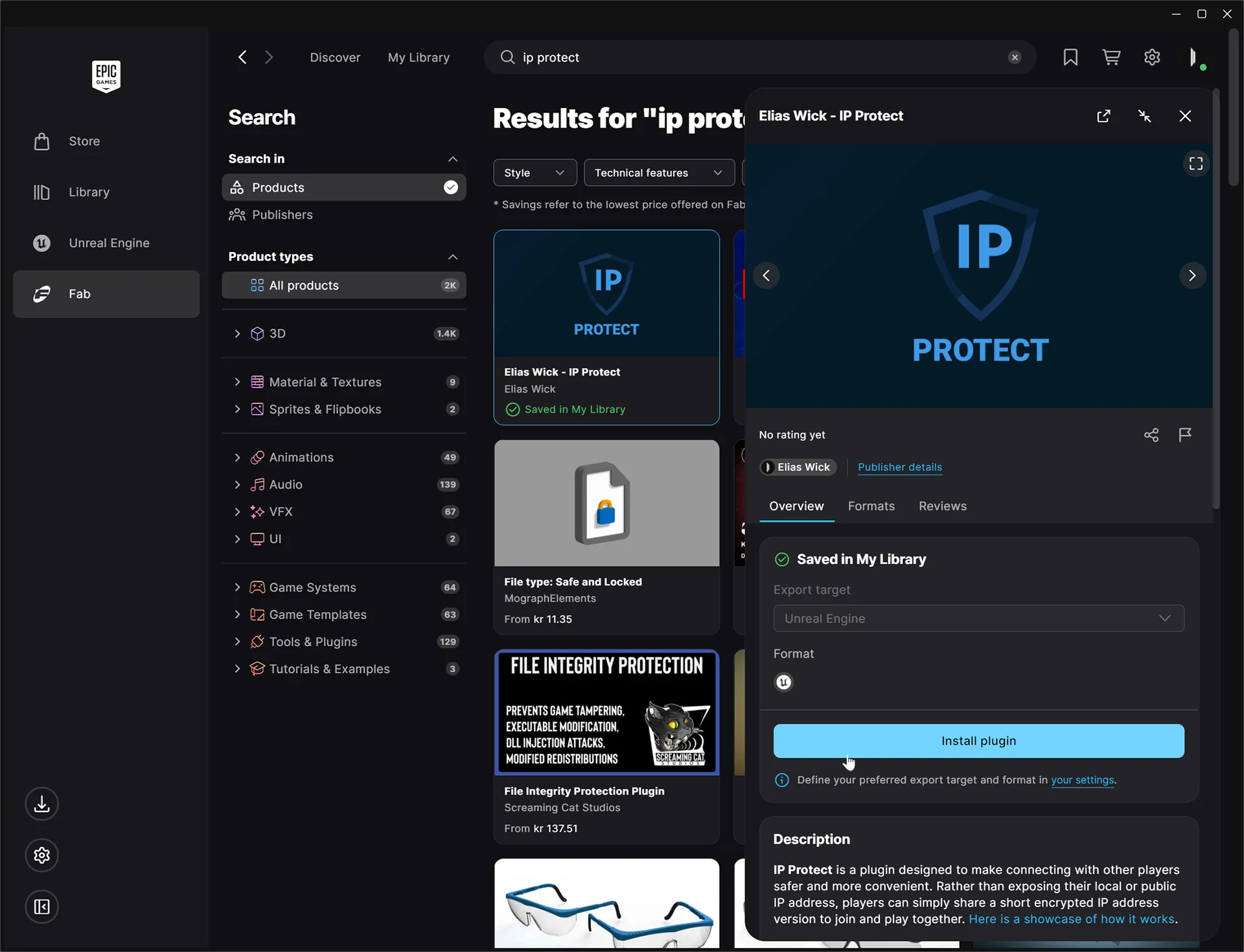
Installing the plugin for a specific engine version makes it available to all projects using that version of Unreal Engine.
Enable the plugin
- Open your Unreal Engine project.
- Go to Edit > Plugins.
- Locate the plugin.
- Enable it by clicking the checkbox.
- Press Restart Now when prompted.
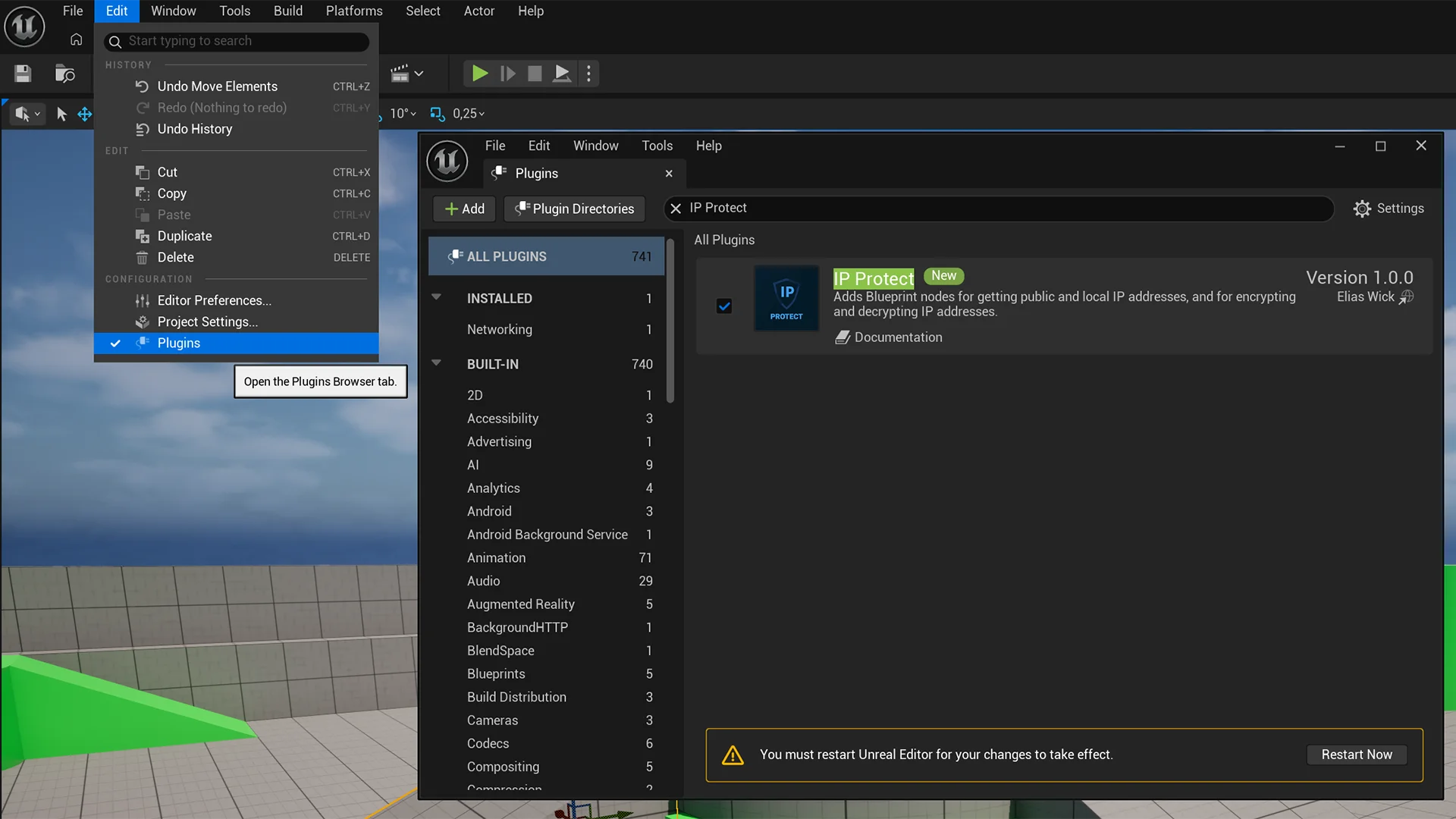
After the editor restarts, the plugin is enabled and ready to be used.
The installed plugin files can typically be located under: C:\Program Files\Epic Games\UE_[VERSION]\Engine\Plugins\Marketplace
Gumroad Installation (Unreal Engine)
Assets and Asset Packs
- Locate your Unreal Engine project folder. You can do this from the Epic Games Launcher by going to Unreal Engine > Library, right-clicking your project, and selecting Show in folder.
- Locate the downloaded product files.
- Extract the files, or open the ZIP file to view its contents.
- Drag the downloaded product's Content folder into the project's root folder.
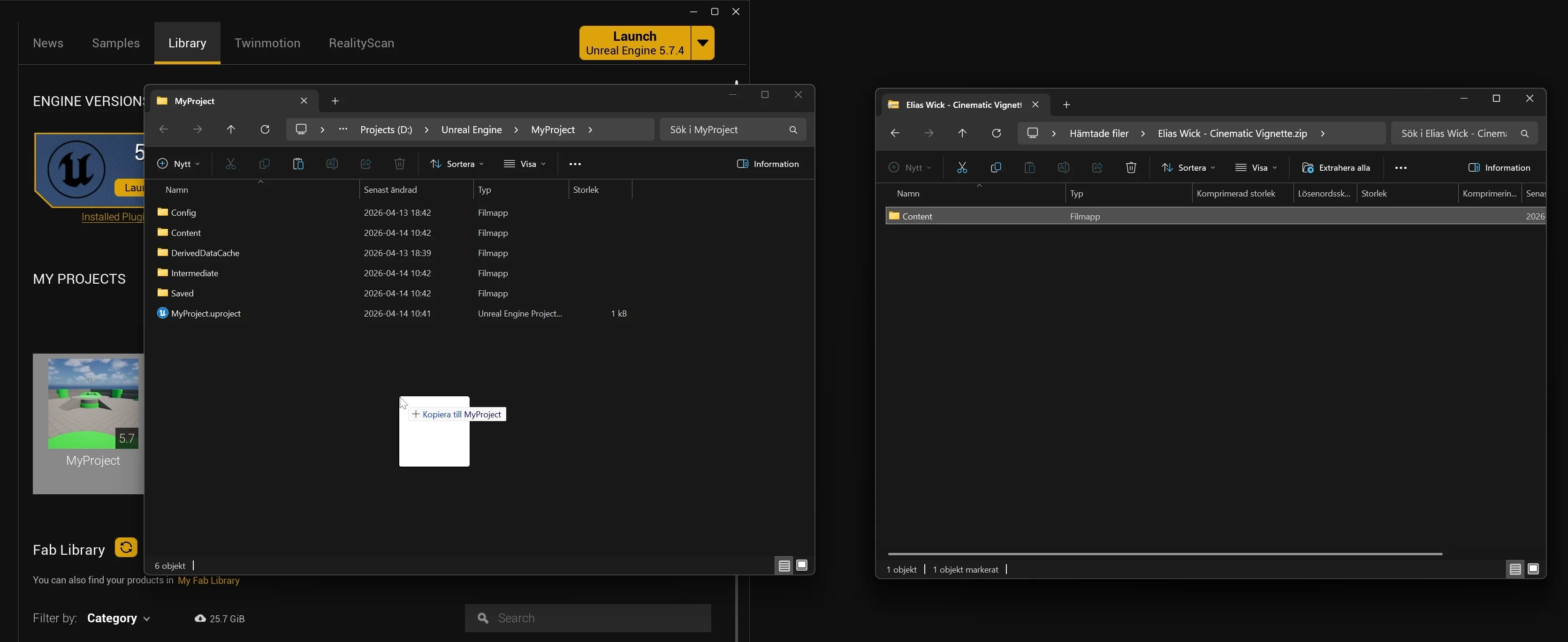
Do not drag the downloaded Content folder into your project's existing Content folder. The included files need to be merged correctly at the project root level in order to appear properly in Unreal Engine. If you want to move the files to another folder later, do it from inside Unreal Engine using the Content Browser.
You can confirm the installation was successful when the downloaded files appear inside your project's Content Browser.
Plugins
Below are two installation options: install a plugin for a specific project, or install it to the engine so it can be enabled across multiple projects.
Installing the plugin for a specific project
- Locate your Unreal Engine project folder. You can do this from the Epic Games Launcher by going to Unreal Engine > Library, right-clicking your project, and selecting Show in folder.
- Create a new folder named Plugins in the project's root directory (if it does not already exist).
- Locate the downloaded plugin files.
- Extract the files, or open the ZIP file to view its contents.
- Drag the downloaded plugin into the Plugins folder you just created in the project root.
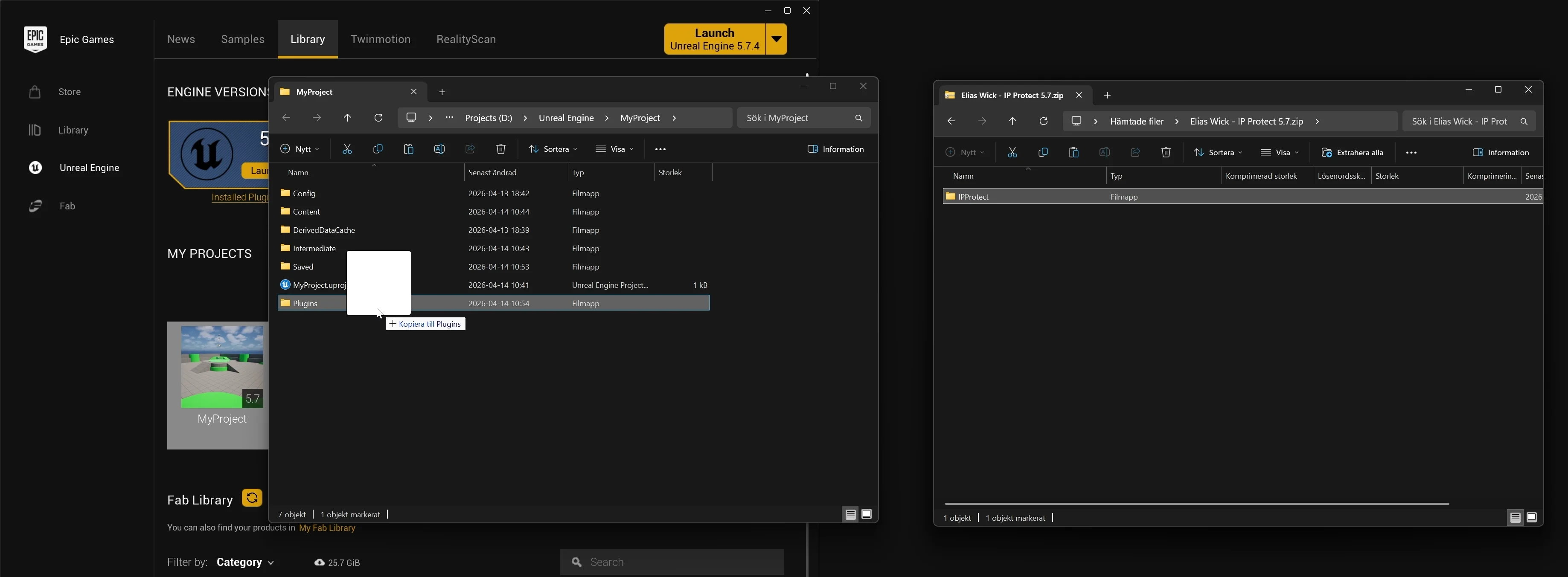
Do not drag the ZIP file into the Plugins folder. Extract the plugin first.
Installing the plugin to the engine
- Locate and open your Unreal Engine folder. The default location is:
C:\Program Files\Epic Games\UE_[VERSION]\, and go into the Engine folder. - Locate the downloaded plugin files.
- Extract the files, or open the ZIP file to view its contents.
- Drag the downloaded plugin into the engine's Plugins folder.
Enable the plugin
- Open your Unreal Engine project.
- Go to Edit > Plugins.
- Locate the plugin.
- Enable it by clicking the checkbox.
- Press Restart Now when prompted.
After the editor restarts, the plugin is enabled and ready to be used.
Installing Products for Unreal Editor for Fortnite (UEFN)
UEFN supports assets and asset packs, but it does not support plugins. Fab on UEFN only has a limited number of assets available, and currently does not allow you to download our products directly. We have been in contact with the Fab team regarding these limitations and have suggested improvements.
Because of this, you need to first add the product to a regular Unreal Engine project, then move the files from that Unreal Engine project into your UEFN project. We recommend using the latest available version of Unreal Engine when doing this.
Fab Installation
- Download Unreal Engine and create a project.
- Open the Epic Games Launcher.
- Press the Fab button in the left side panel.
- Locate the product you purchased and click on it.
- Press Add to Project.
- Select your Unreal Engine project.
- Press Add to Project again to add the product to your project.
- Locate your Unreal Engine project folder. You can do this from the Epic Games Launcher by going to Unreal Engine > Library, right-clicking your project, and selecting Show in folder.
- Open Unreal Editor for Fortnite.
- Right-click your project and select Show in Explorer.
- Copy the product files from your Unreal Engine project into your UEFN project.
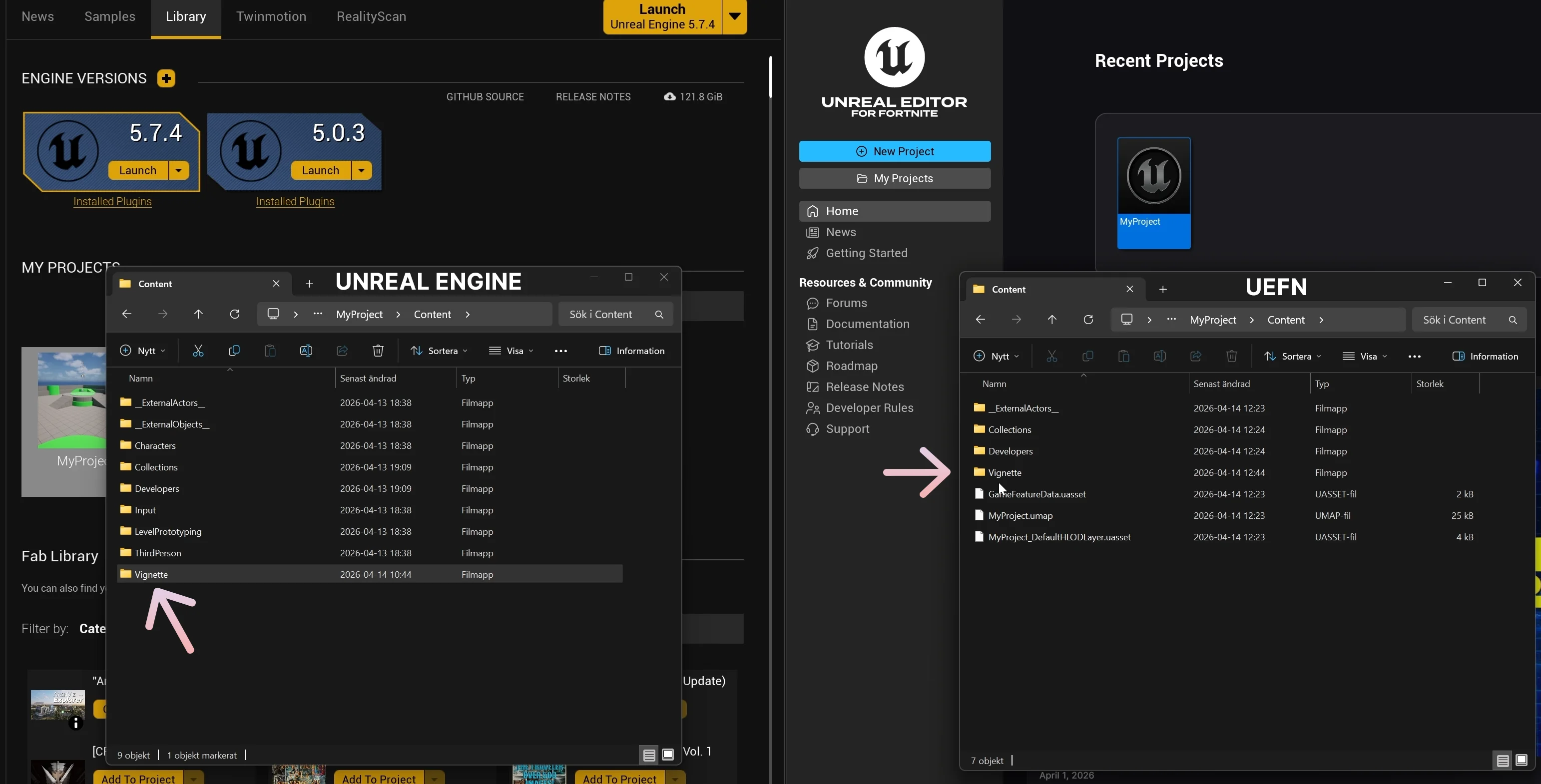
You can confirm the installation was successful when the downloaded files appear inside your project's Content Browser.
Material Troubleshooting
After moving Fab products into UEFN, some materials may need to be recompiled before they work correctly.
- Open the material.
- Disconnect one node.
- Press Apply.
- Reconnect the node.
- Press Apply and Save.
In some cases, material instances may also need to be fixed manually. You can do this by deleting the broken material instance, right-clicking the base material, and choosing Create Material Instance.
Gumroad Installation
- Open Unreal Editor for Fortnite.
- Right-click your project and select Show in Explorer.
- Locate the downloaded product files.
- Extract the files, or open the ZIP file to view its contents.
- Drag the downloaded product's Content folder into the project's root folder.
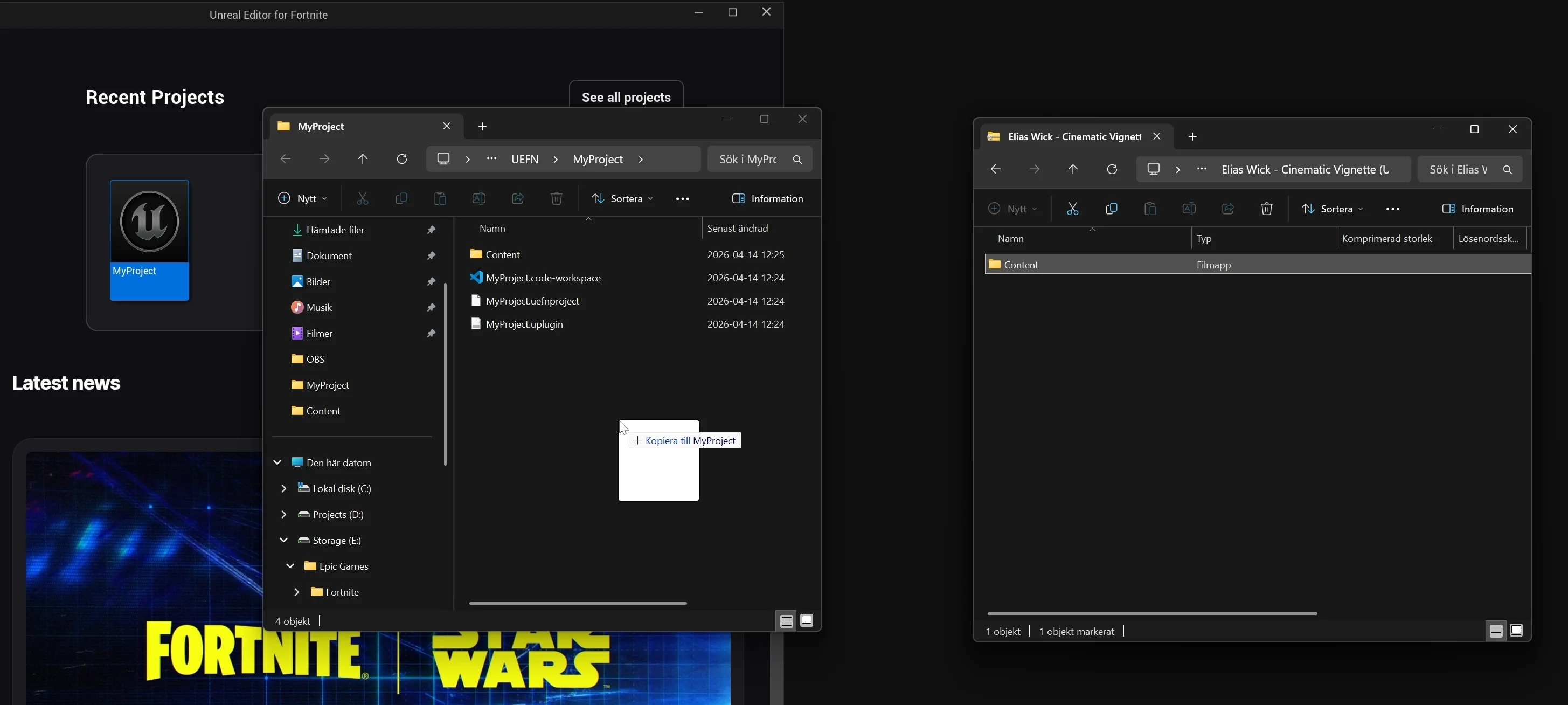
Do not drag the downloaded Content folder into your project's existing Content folder. The included files need to be merged correctly at the project root level in order to appear properly in Unreal Engine. If you want to move the files to another folder later, do it from inside Unreal Engine using the Content Browser.
You can confirm the installation was successful when the downloaded files appear inside your project's Content Browser.
Uninstalling Products
Assets and Asset Packs
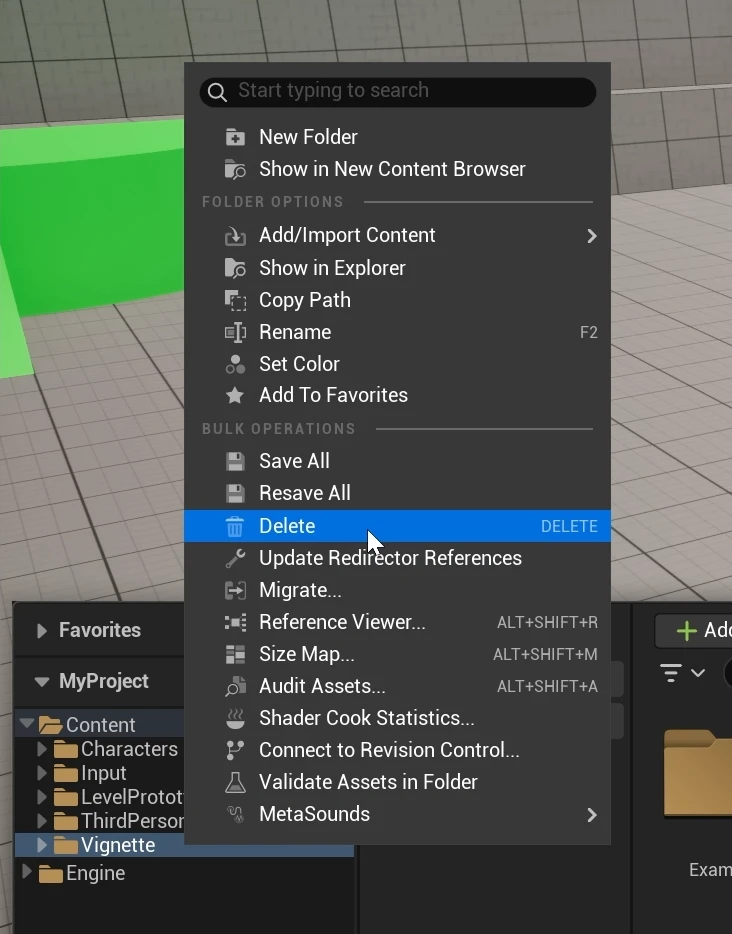
To remove an asset or asset pack from your project, select it in the Content Browser, right-click it, and press Delete.
Plugins
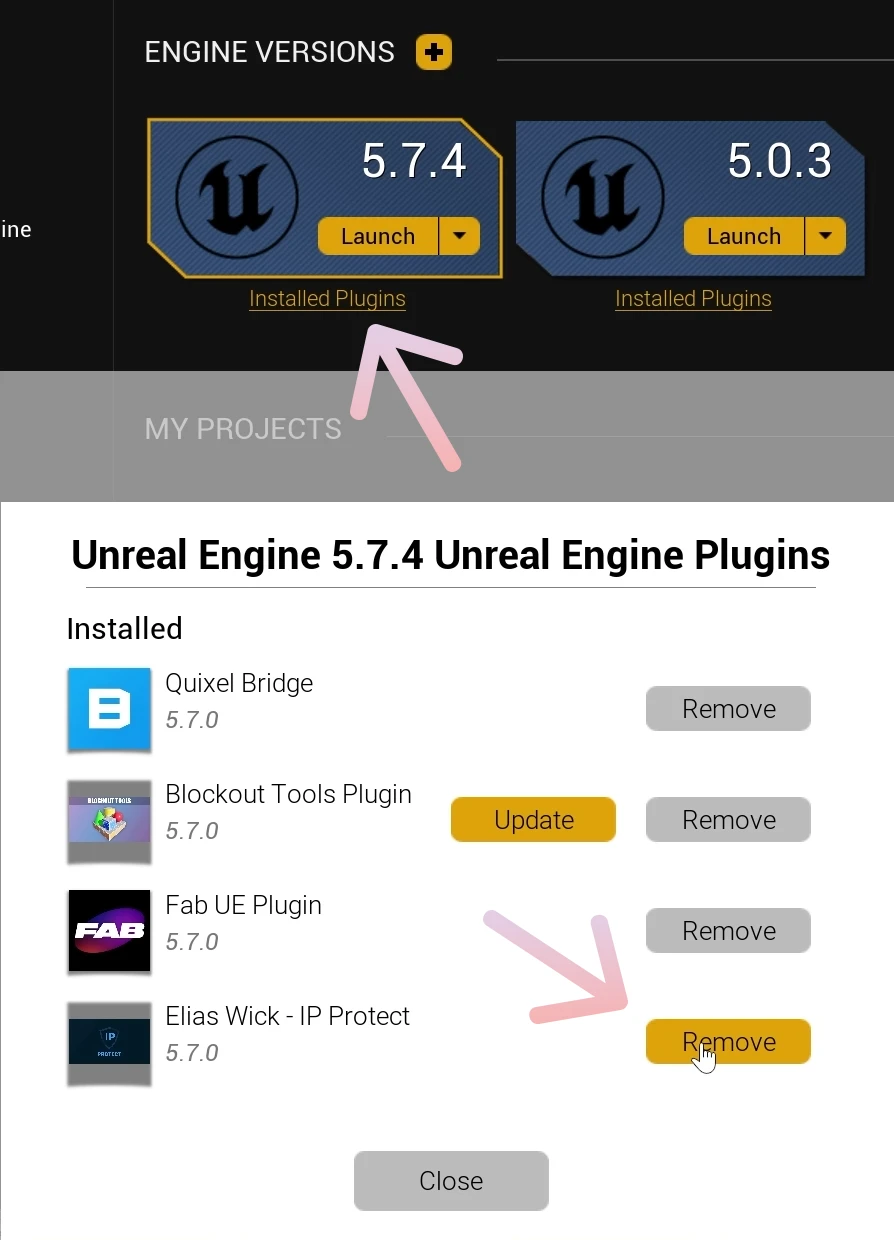
To remove a plugin installed through the Epic Games Launcher, go to Unreal Engine > Library, click Installed Plugins, and remove the plugin you no longer need.
You can also remove plugins manually by deleting their files from either the project's Plugins folder or the engine's Plugins folder.
Need Help?
If you have any questions, please read our Frequently Asked Questions (FAQs). Most common questions are answered there. You can also contact us directly through the Contact page.
Our goal is to make your discovery, purchase, installation, and use of our products as smooth as possible. Please let us know if there is anything we can do to improve your experience.