


Information
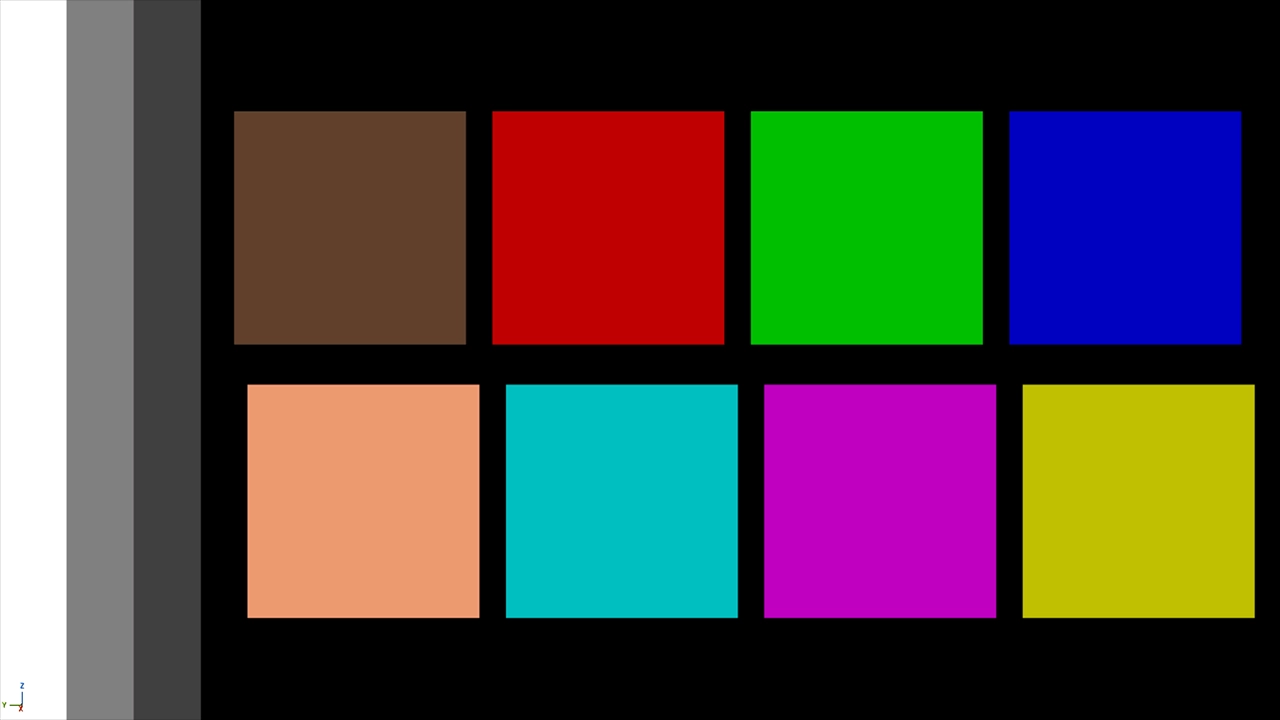
Unreal Engine has a built-in color calibration view that can display a calibration palette directly in the viewport. This is useful when you want to quickly check how brightness, contrast, and color values appear on your screen. Watch the video tutorial to learn more, or continue reading this article.
Enable the color calibration palette
To use the color calibration view, open the console in Unreal Engine. You can usually do this by pressing the ~ key. If the console does not open, check your keyboard layout or open it through the editor's console command input.
Type the following console command: ShowFlag.VisualizeCalibrationColor 1
This enables Unreal Engine's color calibration palette in the viewport. You can use it to inspect how colors are displayed while working in the editor.
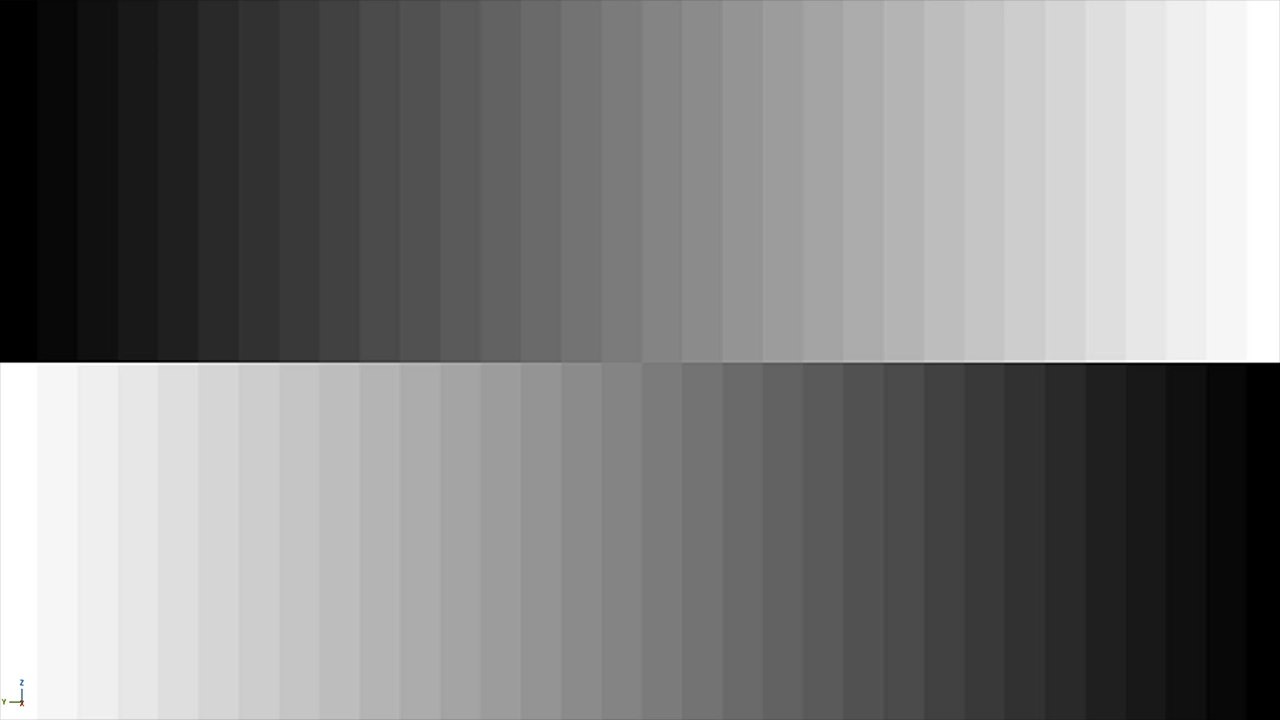
Enter the following console command to view the grayscale values: ShowFlag.VisualizeCalibrationGrayscale 1
Disable the color calibration palette
To turn the calibration view off again, use the same command with a value of 0.