


Information
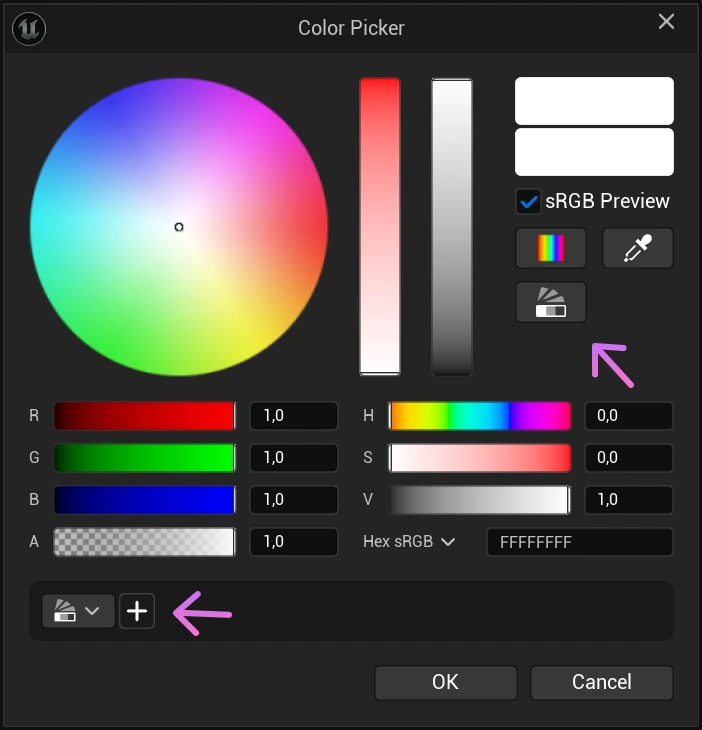
Unreal Engine lets you save reusable color themes (swatches) directly in the color picker. This is especially handy for UI work or any project that relies on a consistent palette. Your themes show up across all color pickers in the editor, and you can collapse the swatch strip to keep the tool compact.
If you prefer video over reading, check out the YouTube tutorial series where I post a new Unreal Engine tutorial every day.
How to use color themes
To show or hide the swatches, use the Toggle visibility of color themes button in the color picker. When the strip is visible, you can browse recently used colors or create a dedicated theme. To build a theme, press the Create New Theme button, write a name for the theme, and add colors straight from the picker by clicking the plus (+) button in the swatch strip at the bottom.
Where color themes are stored
On Windows, color themes are stored per project in this file: YourProject/Saved/Config/WindowsEditor/EditorPerProjectUserSettings.ini
Inside the file, themes appear under the [ColorThemes] section, where each theme name and its saved colors are listed like this:
[ColorThemes]
Theme0=New Theme
Theme1=My Nice Color
Theme1Color0=(R=0.000000,G=1.000000,B=1.000000,A=0.000000)
Theme1Label0=
Theme1Color1=(R=55.826080,G=1.000000,B=1.000000,A=0.000000)
Theme1Label1=
Theme1Color2=(R=31.384583,G=0.376812,B=1.000000,A=0.000000)
Theme1Label2=
Theme1Color3=(R=142.909103,G=0.388693,B=0.820290,A=0.000000)
Theme1Label3=
This makes it easy to back up, and share your color themes with others.