


Information
When I was a teenager, one of the hardest parts of playing games with friends was getting a server up and running. Someone would try to join, it would fail, and I had no clue where the problem was. Was it the game, my PC, the router, the NAT, a firewall, my internet provider, or something else?
Recently, someone in our Discord Server was having trouble connecting to an Unreal Engine server with an IPv6 address. After a bit of troubleshooting, I found the cause. I hope this article saves you from the trouble we had.
How to connect to servers
In Unreal Engine, there are two common ways to connect to a server:
- The Open Level (by Name) node
- The
openconsole command
Connect via Open Level (by Name) node
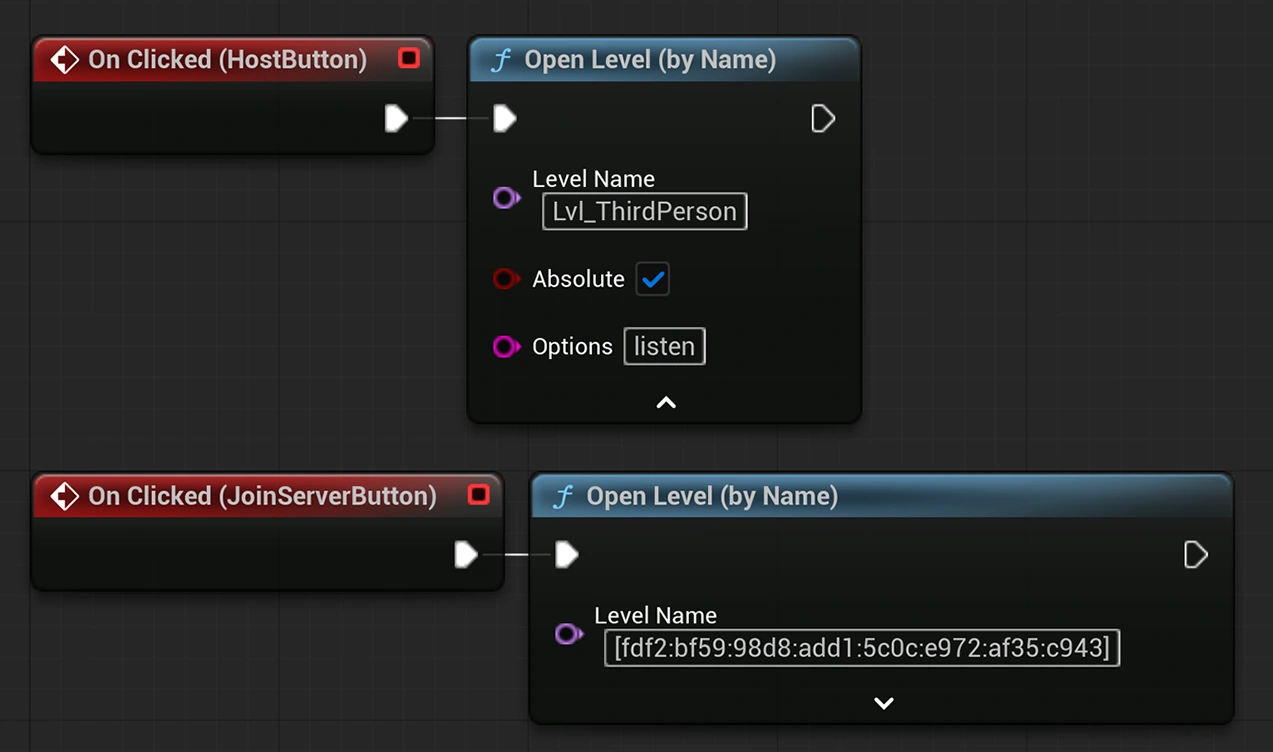
To connect through Blueprints, add an Open Level (by Name) node to your UI button event, then enter the server address in the Level Name field using the IPv6 bracket format.
Example: [fdf2:bf59:98d8:add1:5c0c:e972:af35:c943]
Connect via console
- Open the console by pressing the tilde key ~ on your keyboard.
- Type either:
open [fdf2:bf59:98d8:add1:5c0c:e972:af35:c943](No port)open [fdf2:bf59:98d8:add1:5c0c:e972:af35:c943]:7777(With port)
- Press Enter to connect to the server.
If nothing happens or you see a quick flash, the connection is likely blocked by a setting in Unreal Engine.
Enable the IPv6 connection
There is a console command called: net.DisableIPv6. If it's set to true, IPv6 will not resolve and its usage will be avoided when possible.
From my testing, IPv6 seems to be disabled by default. So set the value to 0: net.DisableIPv6 0, and try to connect using IPv6 again.
You can permanently set net.DisableIPv6 in the YourProject/Config/DefaultEngine.ini, using:
[SystemSettings]
net.DisableIPv6=0