

Information
If you have lots of UMG widgets, the content browser can turn into a wall of nearly identical icons. Custom thumbnails fix that. They make widgets recognizable at a glance, speed up browsing, and reduce accidental "Wopps, I opened the wrong widget again" moments.
For a step-by-step video, head to the YouTube tutorial series where I post a new Unreal Engine tutorial every single day.
How to change the thumbnail image
- Drag and drop or import your desired thumbnail image into the content browser in Unreal Engine. Ensure the thumbnail has the same width and height for best results. I think images sized 512x512 pixels look excellent.
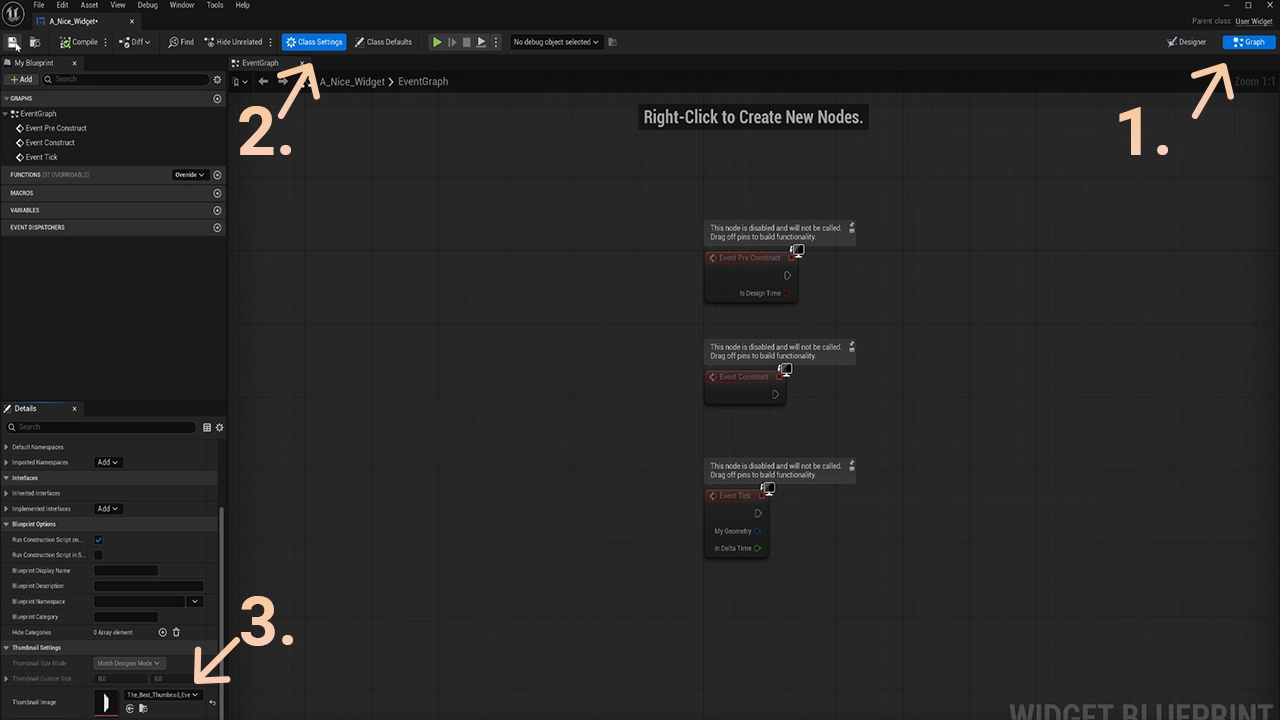
- Open your UMG Widget and go to the Graph section, found in the top-right corner.
- Select Class Settings in the top center bar of the window.
- Go to the Details panel and scroll down until you find Thumbnail Settings.
- Click the Thumbnail Image property and select your image. If you did not add an image at the start, you can import one using the Import Image button.
- Compile, save, and you now have a custom thumbnail for your widget.