


Information
Actors in Unreal Engine can contain a large number of settings in the Details panel, including properties inherited from their parent class. If many of these settings are not useful for your Actor, you can hide entire categories to make the Details panel cleaner and easier to navigate.
Blueprints include a Hide Categories setting that lets you choose which property categories should be hidden when working with the Actor.
Prefer watching a video instead? Check out our Video Tutorial on this topic.
Hide Actor details
Open the Blueprint you want to edit and click Class Settings in the Blueprint Editor toolbar. In the Details panel, find Blueprint Options and locate the Hide Categories setting.
Add the name of each category you want to hide, then compile the Blueprint. Those categories will no longer appear when viewing the affected details for the Actor.
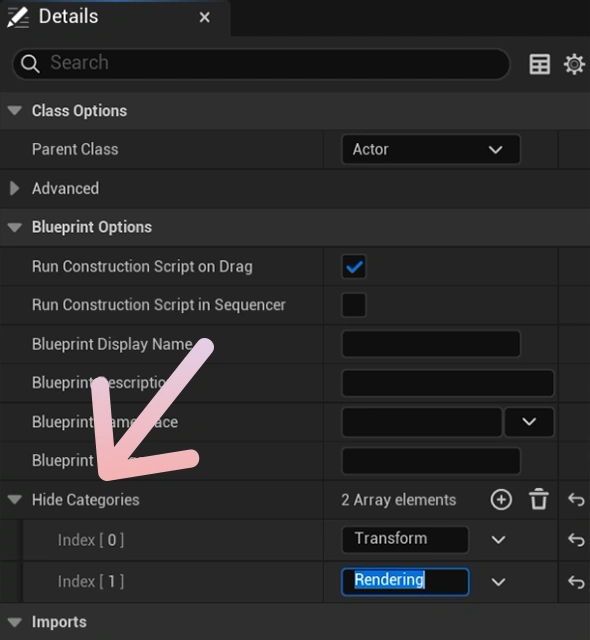
Choose which categories to hide
You can hide categories that are not relevant to how the Actor should be used. For example, if an Actor only exposes a few custom settings, hiding unnecessary inherited categories can make those important properties much easier to find. I personally hide replication if I know the game I am working on won't need multiplayer.
You can add multiple categories to Hide Categories when you want to simplify the Details panel even further.
Why hide Actor details
Hiding unnecessary categories can be useful when creating Blueprints that will be used repeatedly throughout a project or by other people. It reduces visual clutter and makes it clearer which properties are intended to be adjusted. We personally hide unnecessary categories from our products that you won't be using.
Hiding a category does not remove the underlying functionality. It simply prevents those properties from being shown in the relevant editor Details view.