


Information
A quick way to improve performance in Unreal Engine is to lower the Play-In-Editor 3D resolution. This reduces the internal resolution that the scene is rendered at, while keeping the game window or viewport the same size. Watch the video tutorial, or follow the steps in this article.
Changing the 3D resolution
In Unreal Engine, open the Viewport Scalability Settings. This menu lets you adjust performance-related settings such as view distance, shadows, post processing, effects, and resolution scale.
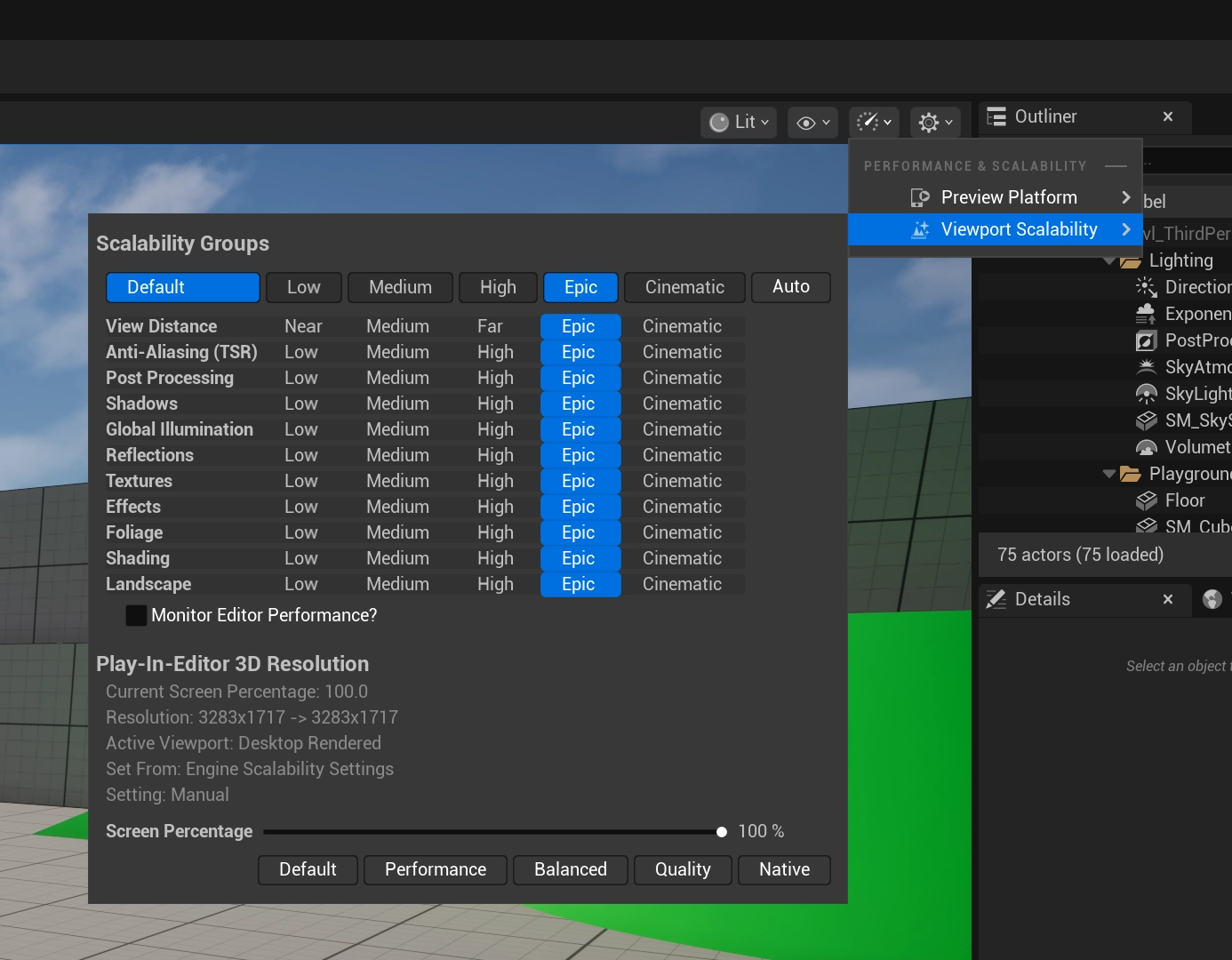
In the scalability menu, look for the Play-In-Editor 3D Resolution section. This shows the current screen percentage, the render resolution, and the active viewport mode.
Use the Screen Percentage slider to reduce the internal render resolution. A lower percentage means Unreal Engine renders fewer pixels, which can improve performance while testing your project in the editor.
Things to keep in mind
Lowering the screen percentage affects the rendered image quality, but it does not change your textures, meshes, materials, or final project assets. It is mainly a quick performance setting for testing and previewing your project more smoothly across a range of devices.