


Information
When working on a level, it is easy to accidentally move an Actor that was already positioned correctly. Unreal Engine includes a Lock Actor Movement option that prevents the Actor from being moved or transformed in the editor.
This is especially useful for cameras after you have found the right composition, or for important objects that should remain in a fixed position while you continue working on the scene.
Prefer watching a video instead? Check out our Video Tutorial on this topic.
Lock an Actor
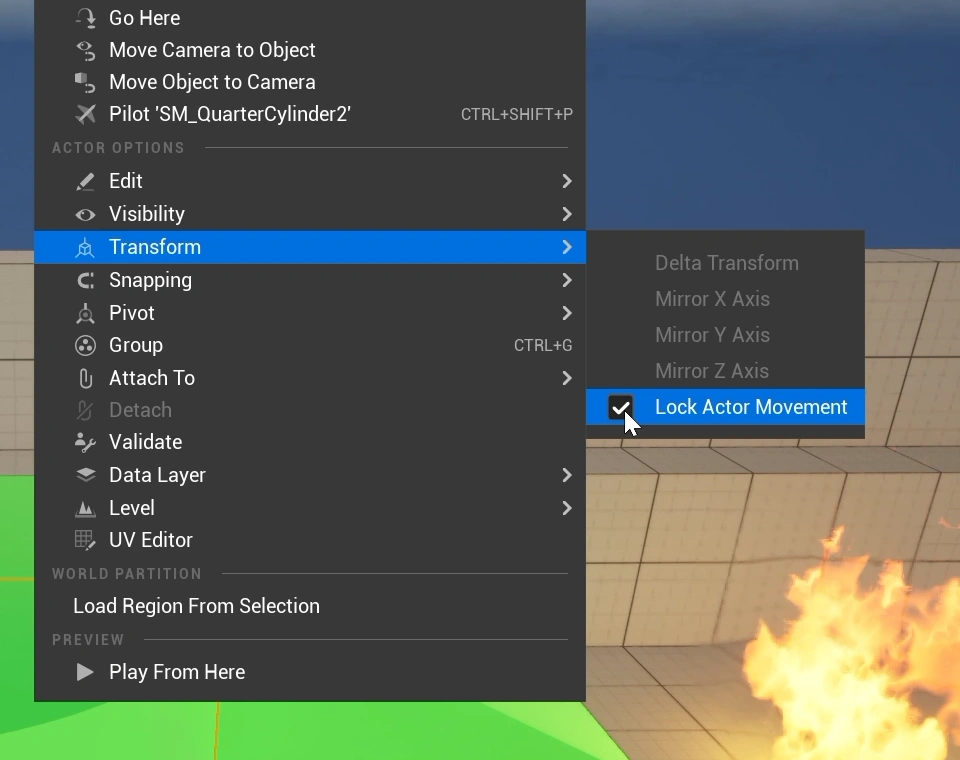
To lock an Actor, select it in the viewport or Outliner, then right-click it and go to Transform > Lock Actor Movement. Once enabled, the Actor's transform is locked and it can no longer be moved normally in the editor.
You can also select multiple Actors and lock them at the same time when you want several objects to remain in place.
Unlock an Actor
To move the Actor again, right-click it and go to Transform > Lock Actor Movement once more. The checkmark will disappear and you can continue moving, rotating, or adjusting the Actor.
Locking is different from Mobility
Lock Actor Movement is mainly an editor workflow feature that helps prevent accidental changes while building your level. It should not be confused with the Mobility setting. Mobility controls whether supported Actors can move or change during gameplay.