


Information
Materials can become expensive very quickly, especially when you keep adding features like detail normals, parallax, emissive effects, wetness, or extra texture layers. A good master material is flexible, but if you are not careful, it can also turn into something that is heavy and difficult to maintain.
One of the easiest ways to optimize this is by using material switches. In Unreal Engine, switches let you control which parts of a material are active. That means you can disable features you do not need, create simpler versions for lower-end hardware, and avoid maintaining several separate materials that all do almost the same thing.
This is especially useful when working on projects that need to scale across platforms. A desktop or console version might use more expensive features, while a lower-end setup can use a simplified version of the same material.
You can also watch my Nanite Switch tutorial, where I cover one of the switches available in the Material Editor. It allows the same material to produce different outputs for standard meshes and Nanite meshes.
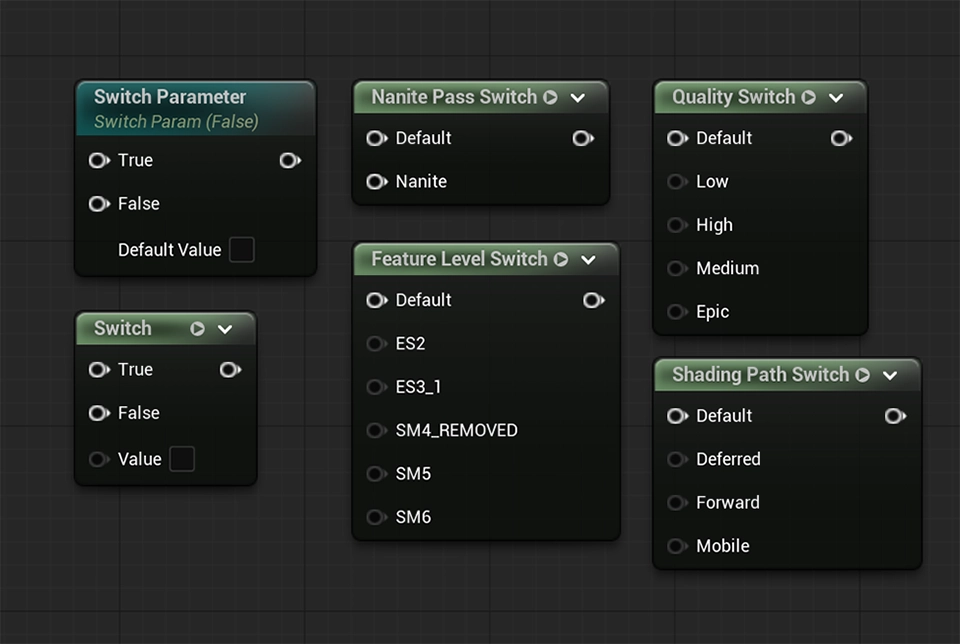
Use static switches for optional features
Static switches are great when you want to enable or disable features in a material instance without "paying" for everything all the time. Common examples include toggling detail normals, using an emissive layer, adding vertex color variation, or blending in a macro texture.
When a static switch is turned off, that branch is removed during shader compilation. In other words, Unreal does not just ignore that part at runtime. It builds a version of the material without it. That is what makes static switches so useful for optimization.
This works well in master materials where you want flexibility, but still want each instance to stay as lean as possible. Instead of making one giant material that always evaluates every feature, you can expose only the options that are actually needed.
Just keep in mind that every switch combination can create additional shader permutations. Switches are powerful, but using too many of them in one material can make compilation slower and increase maintenance complexity.
Use quality switches for different hardware
If you want to support different hardware levels, quality-based switches are a good option. These let you feed simpler logic into lower material quality levels and keep more advanced shading for higher settings.
For example, a high-quality version of a material might use multiple normal maps, roughness variation, and more advanced masking, while a lower-quality version can fall back to fewer textures and simpler calculations. This helps reduce cost on weaker hardware without forcing you to create a completely separate material setup.
You can use this approach to scale materials across performance tiers and keep visuals more consistent across platforms. Instead of rebuilding the entire shader graph for each target, you can define which features matter most at each level and simplify the rest.
If your project targets very different rendering paths or hardware classes, feature-based switches can also help you control what is used in each case.
Keep your master materials under control
Material switches are useful, but they work best when the material is designed with clear priorities. Not every feature needs to be optional, and not every material needs a huge master shader behind it.
A good rule is to only expose features that are likely to change often or that genuinely need to scale between assets or platforms. If a feature is always enabled, there is no real reason to hide it behind a switch. Keeping the graph simpler makes it easier to debug, faster to compile, and easier for other artists to work with.
It is also a good idea to think about which features are worth keeping on lower-end hardware. In many cases, removing one or two expensive effects has very little visual impact, but gives you a cleaner and cheaper material overall.
Material switches are one of those small Unreal Engine features that can make a big difference once you start building larger material systems. They help you stay flexible without losing control of performance, which is exactly what you want when optimizing a real project.
View the YouTube tutorial series where I post a new Unreal Engine tutorial every day.